
Test Printing
Open the [Printers] window or [Printers and Faxes] window.
In Windows XP/Server 2003, open the Start menu, then click [Printers and Faxes].
If [Printers and Faxes] is not displayed on the Start menu in Windows XP/Server 2003, open the [Start] menu, then click [Control Panel] - [Printers and Other Hardware] - [Printers and Faxes].
When [Control Panel] is displayed in Classic View, double-click [Printers and Faxes].In Windows Vista/Server 2008, open the Start menu, then click [Control Panel] - [Hardware and Sound] - [Printers]. When [Control Panel] is displayed in Classic View, double-click [Printers].
In Windows 7/Server 2008 R2, open the Start menu, then click [Devices and Printers].
Right-click the icon of this machine, and click [Properties] (or [Printer Properties]).
In the [General] tab, click [Print Test Page].
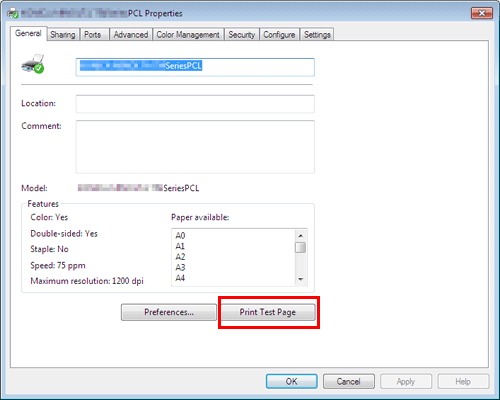
If test printing has succeeded, click [OK].
If test printing has failed, click [Troubleshoot] to find out how to solve the problem.